- Mar 13, 2025
How to Build an AI-Powered Knowledge Assistant for Your Business (Without Coding)
Written by Andrew Lane
Founder of Design Hacker

If you want an assistant that can instantly answer team questions, help customers, and streamline business operations, this is now possible without technical skills.
This guide will show you how to build a custom AI knowledge assistant that can:
Help your internal team with customer support, operations, and processes
Provide clients with instant, accurate answers and added value
Run automatically, saving time and improving efficiency
You don’t need to be a programmer to set it up.
The Goal
An AI-powered chatbot can store and retrieve:
Your internal processes, policies, and FAQs for your team
Your products, services, and customer support information for clients
This AI assistant can:
Answer repetitive questions instantly
Pull up relevant info from documents and databases
Provide 24/7 availability for team and client support
The key is making sure the AI stays updated with accurate, real-time information.
Building Your AI Assistant with a Custom GPT
To create this AI-powered knowledge assistant, we’ll be using Custom GPTs, a feature within ChatGPT that allows businesses to train an AI model with their own data.
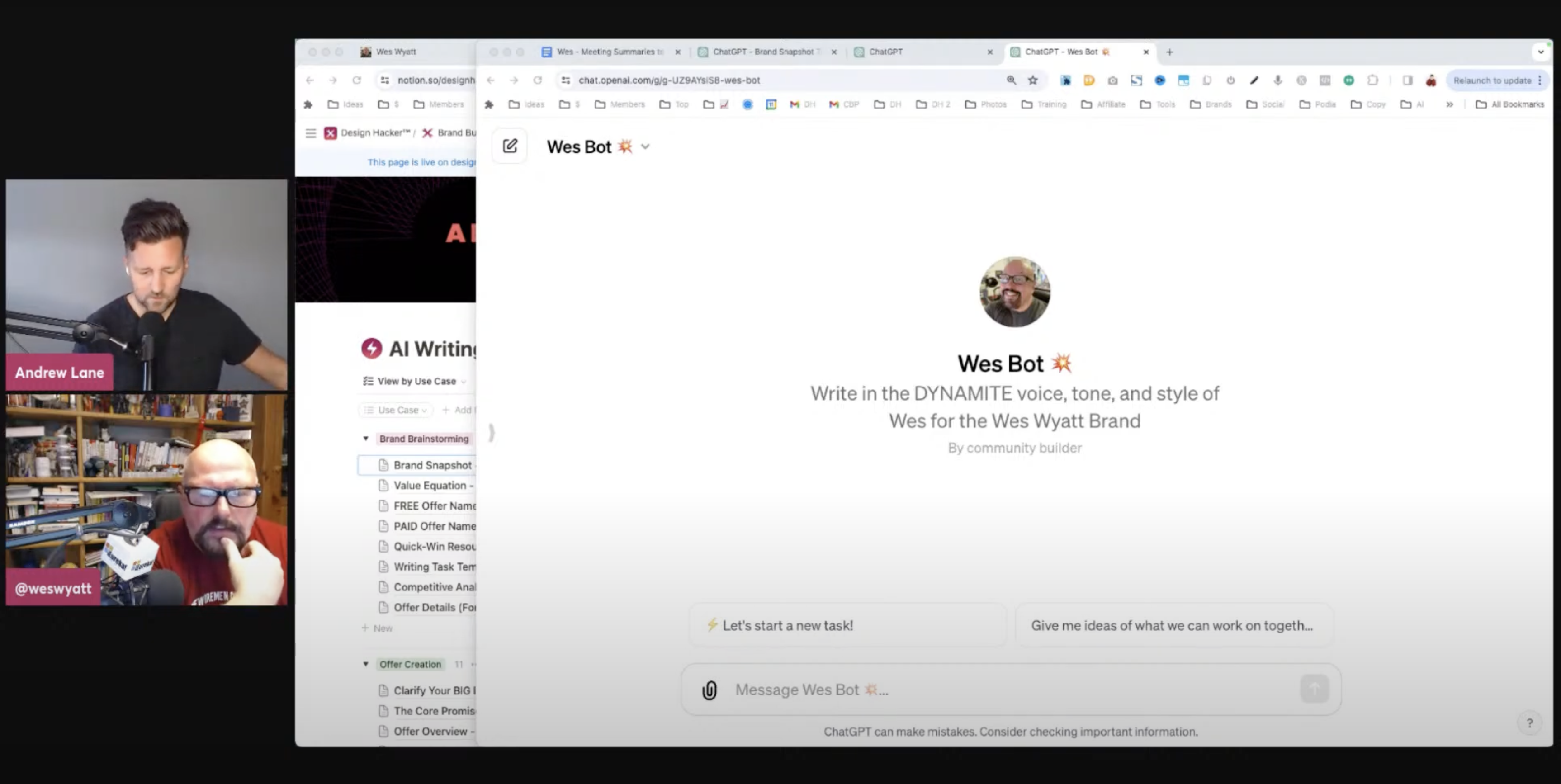
A Custom GPT is a version of ChatGPT that can be tailored to your business. It can:
Reference company-specific information when answering questions
Provide accurate, contextual responses based on uploaded documents or a connected knowledge base
Be used for internal support (helping your team with FAQs, processes, and SOPs) or client support (answering product or service-related questions)
There are two ways to give your Custom GPT the right information:
Manual document uploads – A simple option where you upload files, but you’ll need to re-upload them when updates are made.
Automated data sync with Airtable and Google Drive – A more advanced approach that keeps your AI assistant updated dynamically, without manual work.
This guide will walk you through both options, with detailed instructions on setting up the automated system for businesses that want a hands-off, scalable solution.
Option 1: Upload Documents Manually
OpenAI’s Custom GPTs allow you to upload documents such as PDFs, spreadsheets, and text files. The AI can reference them when answering questions.
✅ Pros
Easy to set up
No extra tools or integrations needed
❌ Cons
Requires manual re-uploads when documents are updated
Best For:
Businesses that only need occasional updates
How to Set It Up:
Create a Custom GPT inside ChatGPT
Upload your FAQs, SOPs, and key documents
Train the AI to answer questions based on the uploaded files
💰 Cost:
ChatGPT Pro ($20/month)
Option 2: Automate with Airtable and Google Drive
A more advanced system allows the AI to always pull the latest information. This avoids the need for manual updates. You can set this up using Airtable and Google Drive.
🔄 How It Works
Store your company’s knowledge in Google Drive (Google Docs, Sheets, PDFs, and other files).
Use Zapier or Make to extract content from Google Drive and send it to Airtable.
Set up a webhook so Airtable automatically updates the AI when files are changed.
Connect Airtable to OpenAI, allowing the AI to access the most recent data when responding to users.
✅ Pros
AI always pulls up-to-date information
No need to manually upload new documents
Works for both internal and client-facing support
❌ Cons
Requires some initial setup
Higher cost due to automation tools
Best For:
Businesses that need real-time AI support for their team and clients
Which Option is Best?
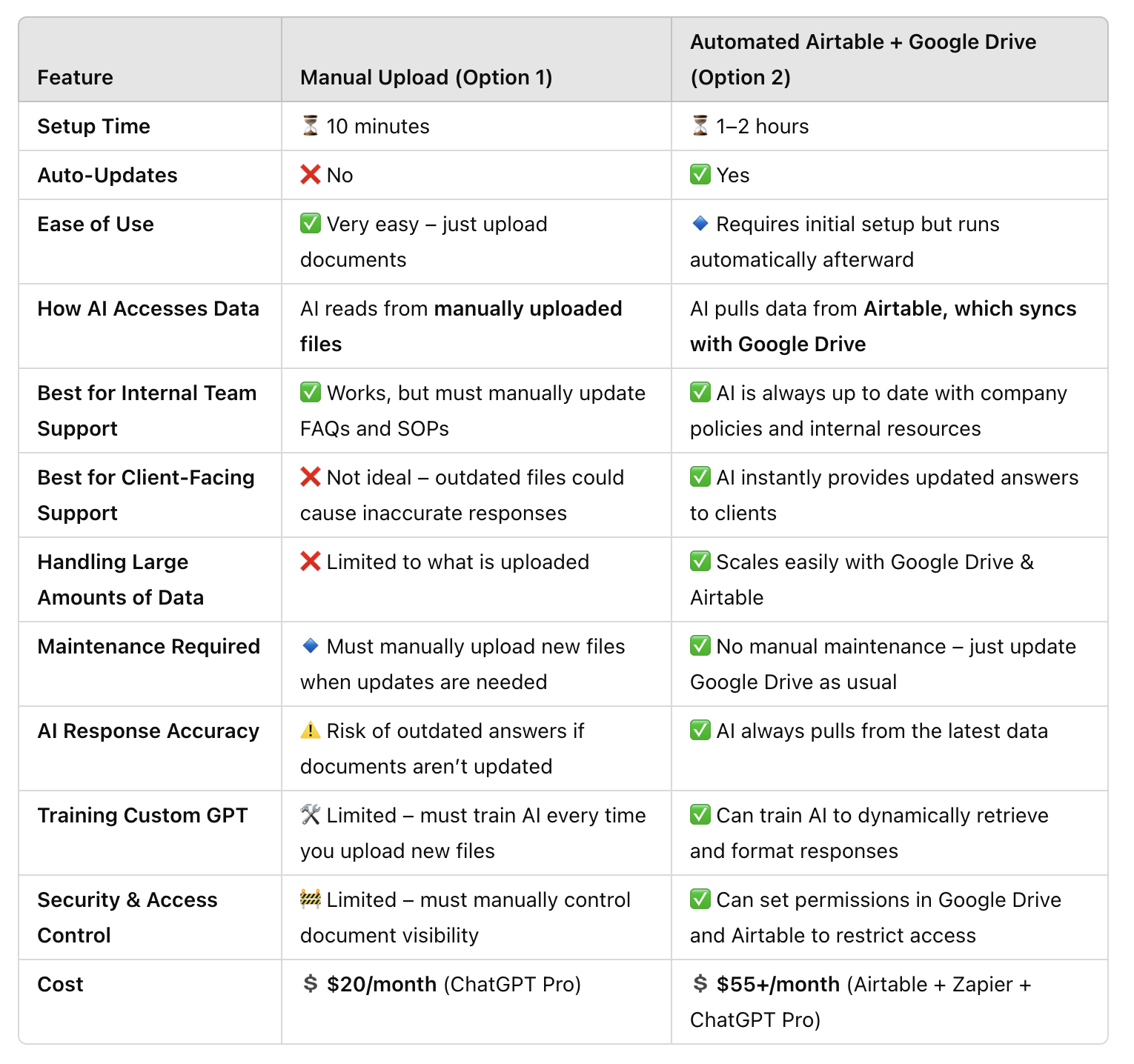
Key Takeaways:
Option 1 (Manual Uploads) is best for small businesses that don’t update information often.
Option 2 (Airtable + Google Drive) is best for growing businesses that need real-time, automated AI support.
If you plan to use AI for ongoing team or client support, Option 2 is the better investment. Once it’s set up, everything runs in the background, allowing you to focus on your business.
Step-by-Step Setup for Automated AI Updates
Step 1: Organize Your Google Drive Folder
Create a dedicated Google Drive folder for all files the AI should reference.
Use subfolders to separate internal documents from client-facing resources.
Step 2: Use Zapier to Sync Google Drive with Airtable
-
Set up a Zapier automation with these steps:
Trigger: When a file is added or updated in your Google Drive folder
Action: Extract text from Google Docs, PDFs, or Sheets
Action: Send the extracted text to Airtable (as a new or updated record)
Step 3: Set Up Airtable Webhooks
Use Airtable’s webhook feature so that each new or updated record notifies the AI system.
Step 4: Train Your Custom GPT to Retrieve the Right Information
Inside your Custom GPT settings, configure the AI to reference data stored in Airtable.
Use AI prompts to ensure it retrieves the correct document and provides relevant answers.
How This AI Assistant Works After Setup
Once this system is in place, you don’t need to update files manually. You can:
Add or edit files in Google Drive as usual
The AI will automatically update its knowledge base via Airtable
Your team and clients will receive the latest answers in real time
This means:
✅ No manual file uploads
✅ No outdated information
✅ The AI stays current with company knowledge
The End Result
Once your AI assistant is integrated with Google Drive and Airtable:
Your team can update files as usual - no extra steps needed
The AI automatically pulls new information without manual uploads
Your AI assistant provides accurate, real-time answers to clients or employees
This allows your AI to function like a true knowledge assistant, saving time and improving response accuracy.
Next Steps
AI-powered assistants are a practical way to improve business efficiency.
With the right setup, you can:
✅ Reduce the workload for your team
✅ Provide faster and more accurate customer support
✅ Ensure that your AI assistant always has the latest information
If you want help setting this up or need to see an example, let’s connect.
🔥 RECOMMENDED TRAINING:
Turn ANY Idea Into a World-Class Brand Identity In MINUTES With AI
This 3-step system uses AI to build a complete brand foundation for ANY business in just a few clicks.

Hey, I'm Andrew Lane
Founder of Design Hacker
I’ve built multiple 7-figure brands from scratch over the past 15 years. Now I’m using AI to make that process faster, smarter, and way more fun. If you want your brand to feel premium without wasting months or thousands of dollars, then this is for you!